On this page
Dashboard and Work Inbox
The dashboard bundles due work and leads without detour to the responsible department.
Where to find it
Open Dashboard in the main navigation.
Requirements and permissions
Sign in to your workspace. The visible cards depend on your product, enabled modules and read permissions.
Step by step
Mobile home
On small screens, select Home in the bottom navigation. Mail, calendar, chat and calls remain directly accessible. Under More features, tiles open contacts, tasks, tickets, files, the password vault and – with the appropriate team permission – Team.
Tiles open their section directly and remain available while the daily overview loads. Select Home to return to the overview. In team administration and personal settings, Sections reveals the other destinations as tiles.
Mobile previews show up to three emails, tasks or tickets each. Open the corresponding section for the complete list. Loading errors show a message with Try again.
Available cards
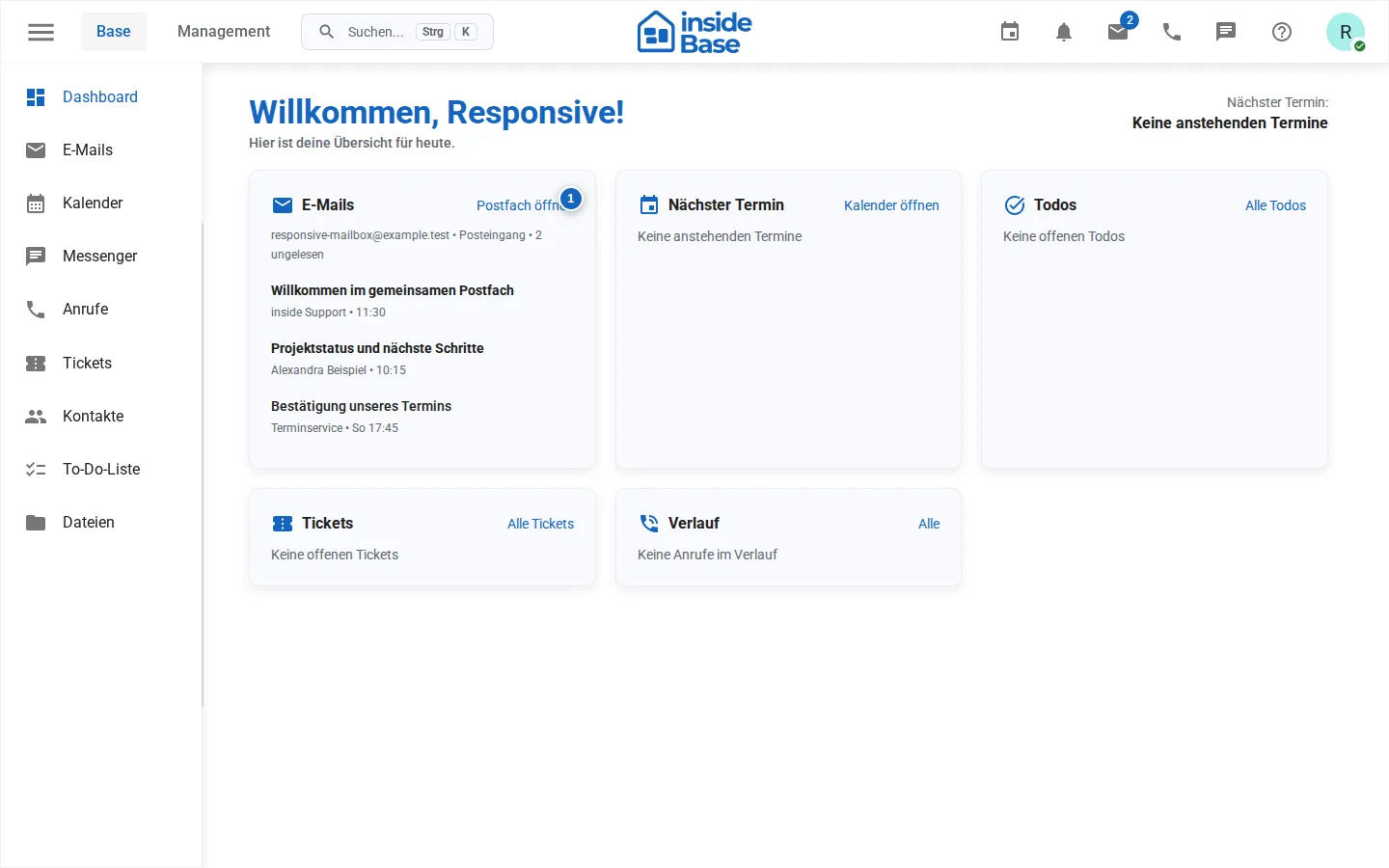
Depending on the product, module activation and role, the work inbox shows, among other things, the next appointment, current emails, open tasks, own tickets and the call history.
How to work with the dashboard
- Open Dashboard in the main navigation.
- Check evidence of work due or overdue.
- Select the action of a card to open the full section.
- Update the respective department if data does not correspond to the expected status.
If a card is missing
Check in this order: product variant, workspace module, personal authorization and existing data. An empty area is partially displayed as a blank state; a non-activated area is hidden.
Result
The relevant work is open or complete. The dashboard reflects the updated status the next time it loads.
Variations and special cases
Empty cards do not automatically mean a disturbance. Modules that are not activated or not allowed are completely hidden.
Troubleshooting
If an expected card is missing, check module unlocking, role, personal rights and whether suitable data is available.