On this page
Use password safe
The password safe stores encrypted personal or shared credentials.
Where to find it
Open Password Safe in the navigation to reach the shared file and password view. The question mark follows the active tab.
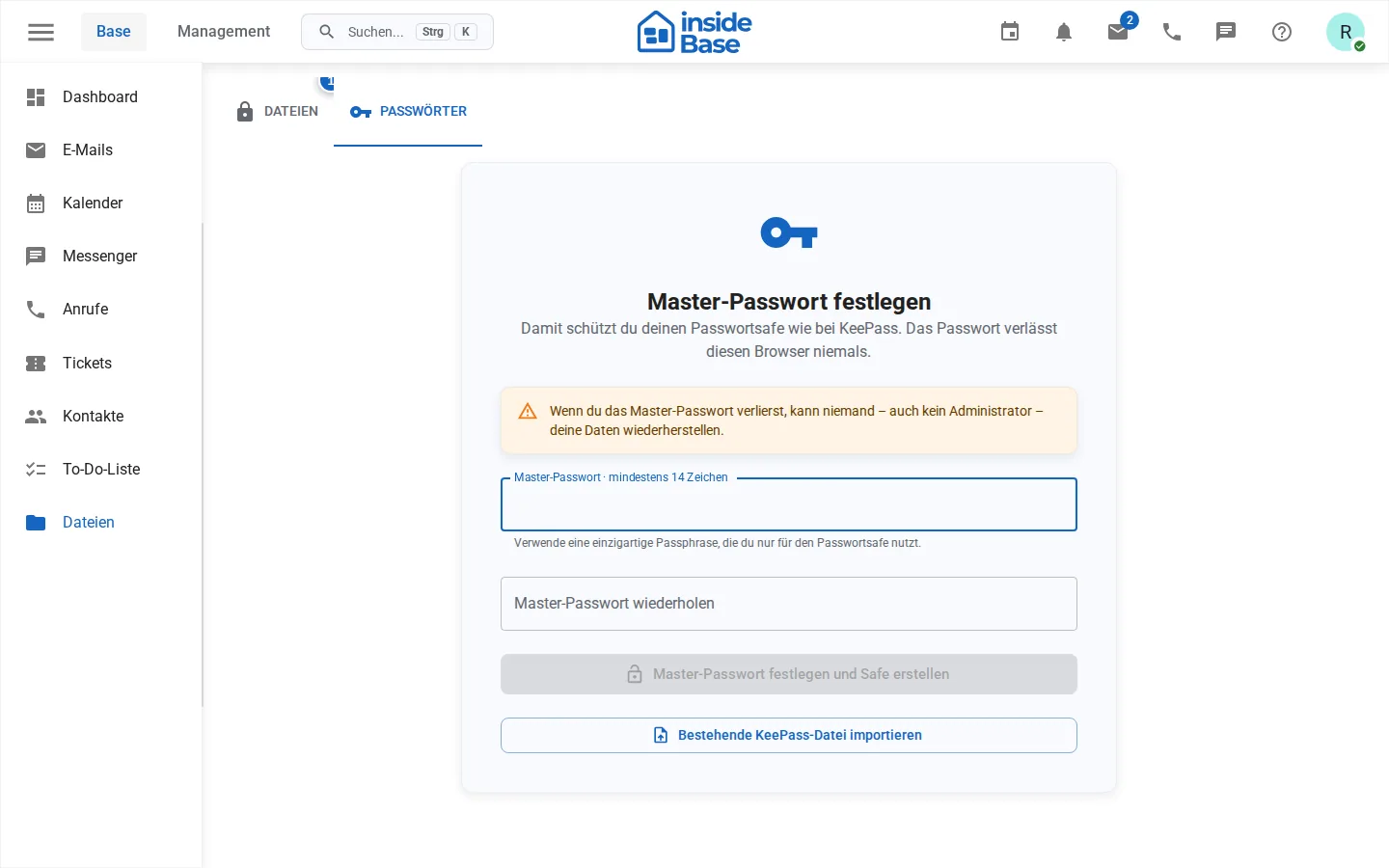
Your personal safe is available under Passwörter (Passwords).
Requirements and permissions
Reading requires vault.read; changes require vault.write. Keep key material within approved channels.
Step by step
Search for an existing entry before creating one. Enter a title, username, destination URL and secret; do not include secret values in the title. Select the correct safe before saving.
Setting up a private safe
- Open Password Safe.
- Set a unique master passphrase with the minimum length displayed and confirm it.
- Unlock the safe with this passphrase.
- Create entries and use the password generator for new secrets.
- Lock the safe when you leave the workplace.
The master passphrase does not leave the browser. Without it, private entries cannot be restored. Keep the passphrase according to your security policy, outside the safe it unlocks.
Import and export KeePass files
An existing KDBX file can be checked locally and imported encrypted. Exports are available as KDBX and in expressly confirmed cases as CSV. CSV is unencrypted and must be specially protected and then securely removed.
Result
The encrypted entry is stored in the selected safe and is only available for authorized persons.
Variations and special cases
KDBX imports remain encrypted; CSV exports are unencrypted. Check the file format and required decryption details when importing.
Troubleshooting
Check the selected safe, permissions, unlock status, and KDBX compatibility if applicable. Do not perform repeated exports for troubleshooting.